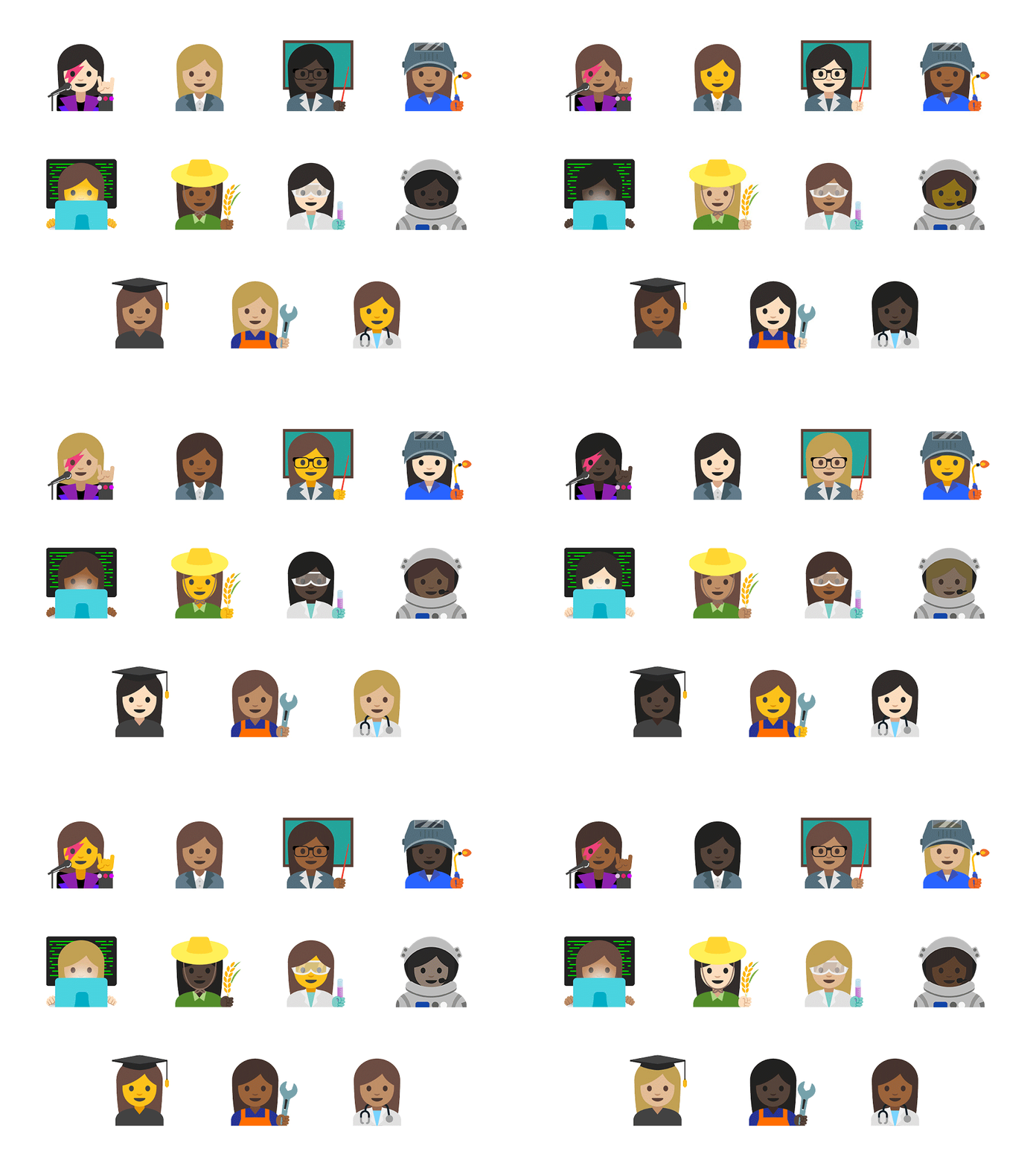
Earlier this year google announced a proposal to promote gender equality by adding new emoji that reflect the pivotal roles women play in the world, and represent a wider range of professions for both women and men. We included gender counterparts for emoji that previously only had male or female representation. Now there are female welders and men getting haircuts. Our new set of emoji launched with the Pixel phones and now are available to all devices running Android 7.1.1. So you can jam like a rock star or explore the galaxy like an astronaut.
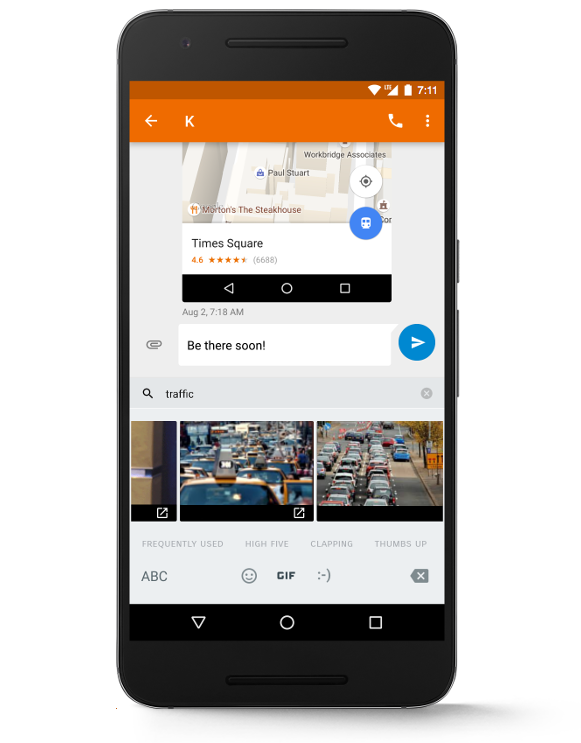
And if you’re looking for more ways to express yourself, you also can now send GIFs directly from your keyboard on supported apps such as Google Allo, Google Messenger and Hangouts.
Send GIFs directly from your keyboard
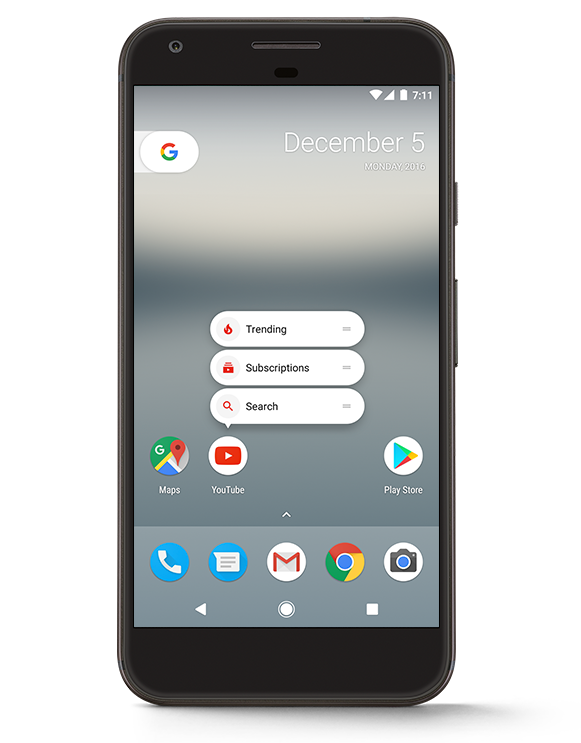
And for everyone looking for just one more way to make life easier, Android 7.1.1 brings you app shortcuts directly from your home screen. Launch actions on your favorite apps, such as Twitter or Google Maps, by simply long pressing the app icon. Jump directly into an existing conversation on Google Messenger or start an entirely new one - all straight from the app icon.
Launch actions on your favorite apps by simply long pressing the app icon
Today, and over the next several weeks, the Nexus 6, Nexus 5X, Nexus 6P, Nexus 9, Pixel, Pixel XL, Nexus Player, Pixel C and General Mobile 4G (Android One) will get an over the air (OTA) software update to Android 7.1.1 Nougat. Any devices enrolled in the Android Beta Program will also receive this final version.
Today, we’ll begin rolling out Android 7.0 Nougat to Nexus devices. And with more ways to make Android your own, it’s by far our sweetest release yet.
We took a different approach to building and launching Nougat this year. For starters, we invited developers to take a sneak peek at Android N back in March, so they could bring their apps to the new platform earlier. And of course we asked you to help us come up with names for this year’s release, resulting in lots of great ideas, and a delicious unveiling back in June.
Android Nougat reflects input from thousands of fans and developers all over the world. There are over 250 major features in Android Nougat, but we wanted to highlight a few of the features you’ve been most excited about.
More personal
Providing more ways to customize your phone to fit your personality is kind of a big deal, and Android has been leading the way since day one (Homescreen widgets, anyone?). With Android Nougat, you’ll have even more ways to make your phone your own, including:
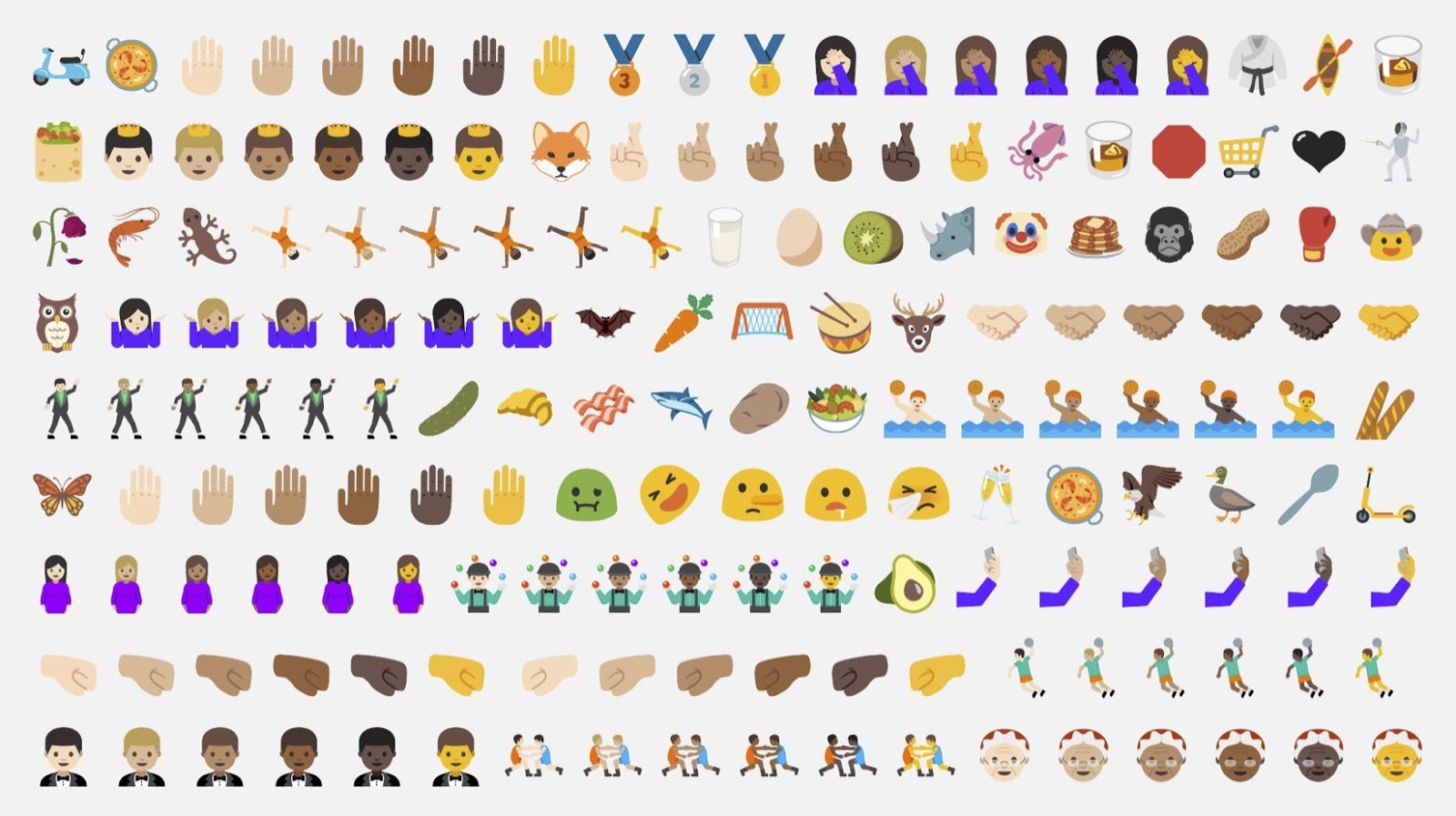
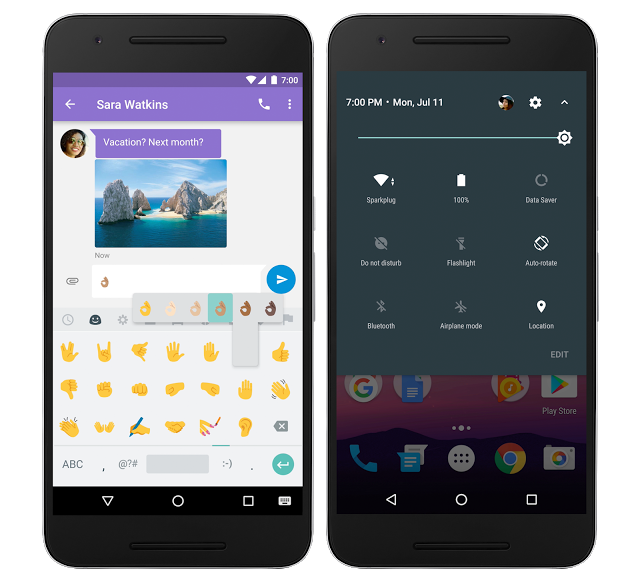
Expanded emoji: There are now over 1,500 different emoji built into Android, including 72 new ones, so go ahead: express yourself.
Quick Settings controls: Quick Settings gives you easy access to things like bluetooth, WiFi and the all-important flashlight. With Android Nougat, you can actually control what tiles go where, and move ‘em around to fit your needs.
Multi-locale support: Apps can tailor their content based on your locale settings. So if you speak multiple languages, for instance, then search engines can show results in each of those languages.
Expanded emoji and Quick Settings controls
More productive
Whether you’re responding to work emails or making plans with friends, Android Nougat helps you multitask with ease with new features like Multi-window, Direct reply, and Quick switch.
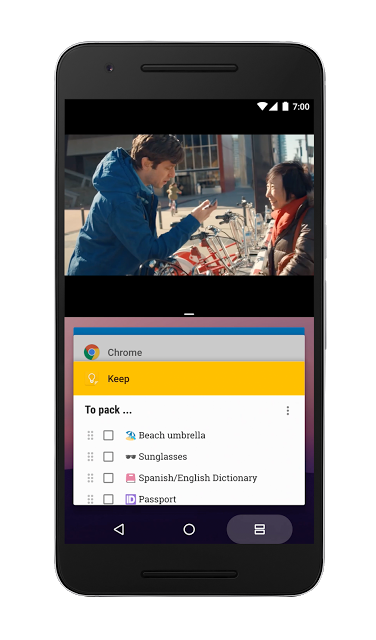
Multi-window: Run two apps side-by-side. The windows are resizable, too, by simply dragging the divider.
Direct Reply: Reply directly to notifications without having to open any app.
Quick Switch: Switch between your two most recently used apps by simply double tapping the Overview button.
More battery smarts
Starting with the release of Android Marshmallow last year, we have been making the battery smarter. That’s why we made the Doze feature even dozier with Android Nougat. Your device can now drop into lower power usage when it’s getting jostled around in your pocket or bag while on the move.*
Split-screen
More immersive
Android Nougat is designed with immersive experiences in mind—including support for VulkanTM (an advanced 3D rendering API) and Daydream (Google’s platform for mobile virtual reality).
VulkanTM: Games will now leap to life thanks to high-speed, next-generation graphics — all powered by your device’s multi-core processor.
Daydream: Android Nougat is ready to transport you to virtual worlds with Daydream-ready phones, headsets and controllers — all coming later this year.
More secure
As always, Android is built with powerful layers of security and encryption to keep your private data private. For new devices coming this fall, we’ve also added new features like Seamless updates, File-based encryption and and Direct Boot.
Seamless updates: New Android devices with Nougat can install software updates in the background which means you won't have to wait while your device installs the update and optimizes all your apps for the new version. And for current Nexus users, software updates now install much faster, so you won't have to wait for minutes while your device reboots.
File-based encryption: Android Nougat can better isolate and protect files for individual users on your device.
Direct Boot: Direct Boot helps your device startup faster, and apps run securely even before you unlock your device when your device reboots.
And for those of you who also want to use your Android device at work, there are also new security features for using Android in enterprise, which you can learn more about on the Android for Work website.
Coming soon, to a device near you
Today, and over the next several weeks, the Nexus 6, Nexus 5X, Nexus 6P, Nexus 9, Nexus Player, Pixel C and General Mobile 4G (Android One) will get an over the air software update** to Android 7.0 Nougat. Any devices enrolled in the Android Beta Program will also receive this final version.
And there are many tasty devices coming from our partners running Android Nougat, including the upcoming LG V20 which will be the first new smartphone that ships with Android Nougat, right out of the box. You can learn even more about Android Nougat at www.android.com/nougat.
The new Home button isn’t actually a button. Similar to the Force Touch trackpad on the new Macs, the new Home “button” is capacitive. It doesn’t move itself, you get feedback on the operation thanks to the Taptic engine just behind the Home button.
This means that you can customize how “hard” the press/feedback feels like. There are 3 settings – basically low, medium and high. You would be asked about it during setup. But you can go into “Settings” -> “General” -> “Home” to change them anytime.
#2. Learn The New Way To Hard Reset
If your iPhone was acting weirdly, the first thing you’d do is hard reset. Just press and hold the Sleep/Wake and Home button until the iPhone reboots. But because the Home button isn’t a real button now, the key combination for this action has changed. You now need to press and hold “Sleep/Wake” and “Volume Down” buttons.
If you’re running iOS 10.1 and up on your iPhone 7 Plus, you should now see a new option for the Portrait mode. You can switch to it by swiping on the camera view, the same way you switch to Pano mode.
When you click a Portrait shot, iOS saves a normal version of the photo, in case you don’t like the Portrait mode photo. But this means you’re using up double space. If you’re pretty confident about Portrait mode’s prowess, you can go into “Settings” -> “Photo & Camera” and disable “Keep Normal Photo” from under the Portrait Mode section.
#5. Use Optical Zoom on iPhone 7 Plus
You should know that on your iPhone 7 Plus, you actually have 2x optical zoom thanks to the secondary telephoto lens at the back. To activate it, all you have to do is tap on the “2x” button above the shutter key. You can also swipe around to go from 1x to 10x, for finer control. Anything above 2x is software zoom.
#6. Switch to 4K Recording
While it’s not turned on by default, you should know that your iPhone has the ability to shoot videos in 4K. If you’re shooting something at a party, in good light, try switching to 4K. It will take up a lot of memory but the footage will look amazing. From the Settings app, go to “Photo and Camera“. From “Record Video” option, switch to “4k at 30 fps“.
#7. Lock Camera Lens When Recording
Now that the iPhone 7 Plus has a zoom lens, there’s a new setting available to lock the lens when recording a video. This means the zoom won’t readjust itself every time there’s a flickering image or a light issue. You’ll find the “Lock Camera Lens” option in the same “Record Video” section.
#8. Turn off Raise to Wake
iOS 10 running on the iPhone 7 has a new feature where it automatically lights up the display when you pick up the phone. But if you keep doing this accidentally, there’s a way to turn the feature off from “Settings” -> “Display and Brightness“.
#9. Add Widgets To Lock screen
Widgets on iOS 10 are actually quite epic. Really useful. And you can add them directly to the Lock screen. The left page is dedicated to them. Swipe right on the Lock screen, swipe to the bottom and tap “Edit” to customize widgets. Check out our guide here.
#10. Use Your iPhone as a Magnifier
You can use iPhone’s epic camera as your personal magnifier, zooming way in to read things you can’t with your naked eye. To enable this feature, go into “Settings” -> “General” -> “Accessibility” -> “Magnifier” and turn it on. Next time you want to use this feature, triple click the Home button and it will show up.
#11. Charge The iPhone And Listen To Music
The iPhone has no headphone jack. So if you want to listen to music using the Lighting EarPods while your iPhone is being charged, you’ll need – a dongle. Belkin makes a dongle with 2 Lightning ports, called “Belkin Lightning Audio + Charge RockStar” and it sells for $40. You can also buy Bluetooth earphones. Or Apple’s AirPods, when they come out.
#12. Use 3D Touch
In iOS 10, 3D Touch is available a lot lot more places. And it is now essential if you want to reply to comments from the Lock screen, or send effects in Messages app. You should start using 3D Touch, and incorporate it in your day to day use. Check out our list on all the new places 3D Touch is available in iOS 10.
#13. Unlock iPhone Without Pressing The Home Button
iOS 10 requires you to “press” the Home button to unlock the iPhone. Even on iPhone 7, this means pressing the Home button till you get the Taptic feedback. But what if you want to unlock your iPhone as soon as you put your finger on the Home button. You can do that, as long as the screen is awake, using an Accessibility setting.
From the Settings app, go to “General” -> “Accessibility” -> “Home“. And turn on “Rest Finger to Unlock” option.
#14. Disable New System Haptics
The iPhone 7 has a really powerful Taptic engine. And in iOS 10, there’s haptic feedback almost everywhere. This is created to simulate real world. So when you’re spinning the date wheel, you’ll feel like it’s moving. This is also available in apps like Mail when deleting emails, for example.
But this might be annoying to some, so go into Settings and find the all new “Sounds & Haptics” section. From the bottom, turn off the “System Haptics” option.
General
#15. Enable Two-Step Verification
You will use the Apple ID for everything to do with Apple such as shop on the iTunes Store, enable iCloud on all our devices, buy from Apple’s Online Store and lots more, so it is highly recommended that you enable two-step verification for your Apple ID to increase the security of your account, to prevent you account from getting hacked.